Track every job from assignment to invoice.
One calm system for your office, your field crews and your clients, on the web and in the mobile app.
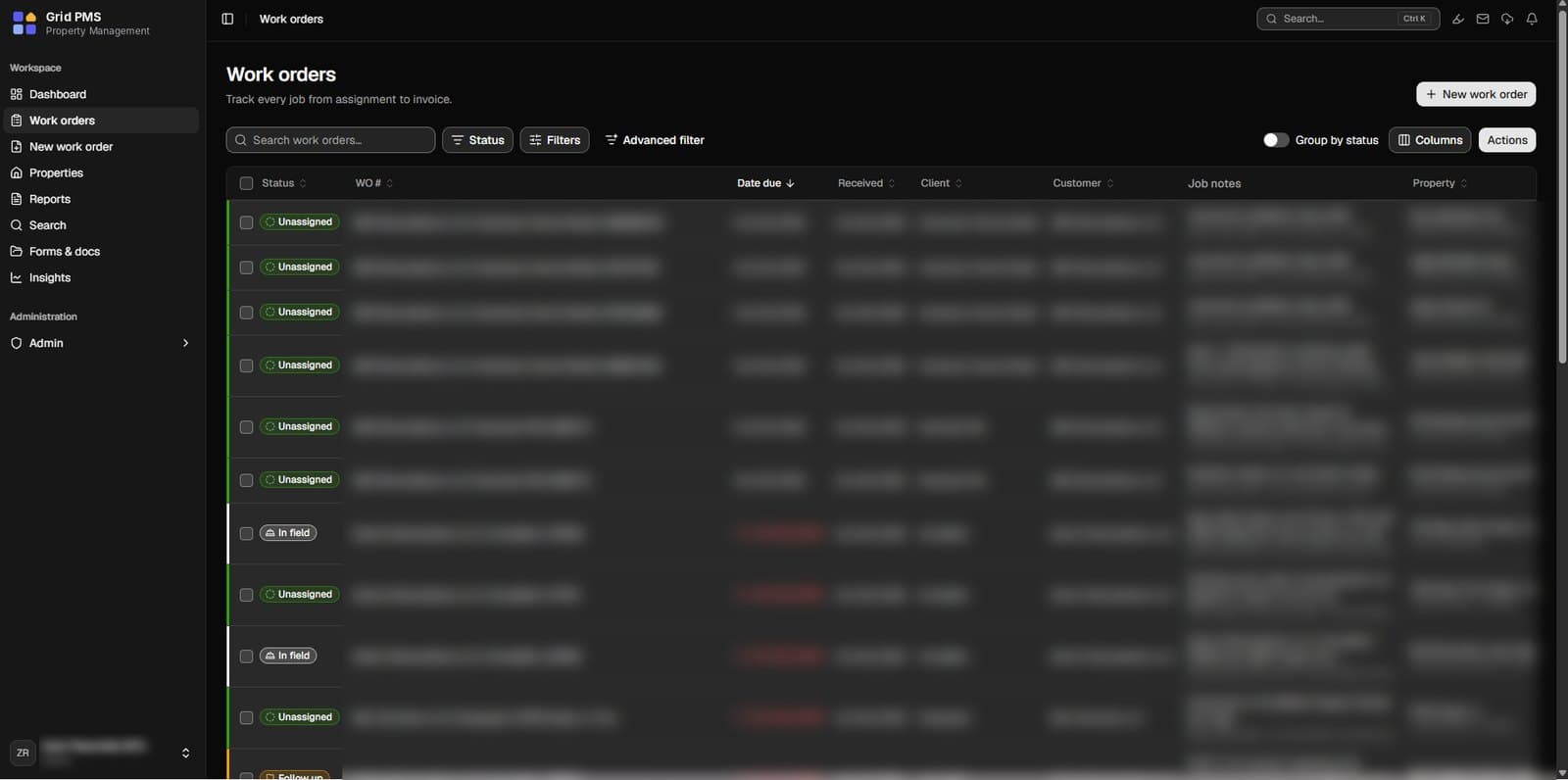
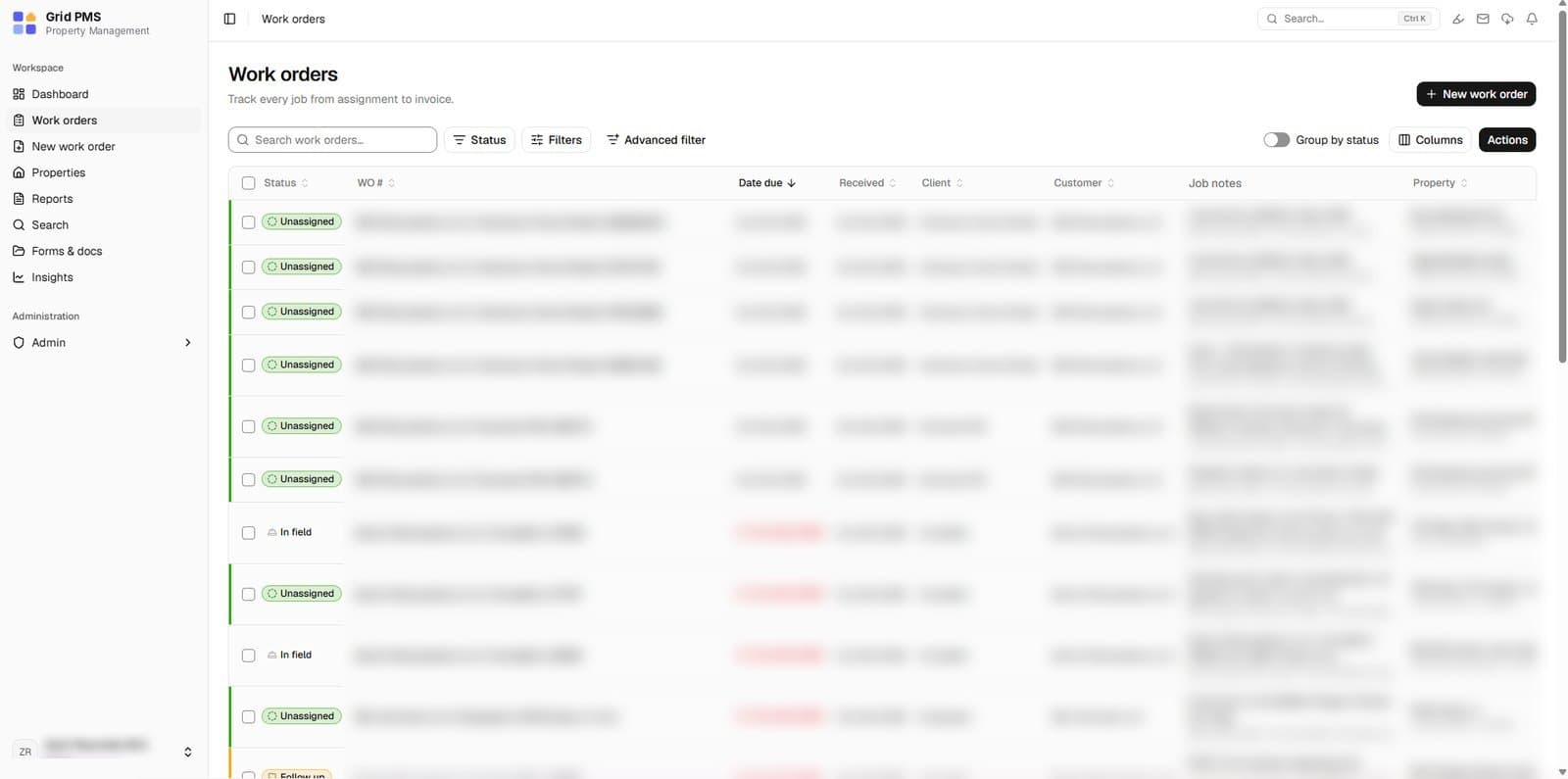

Your whole board, sorted by what's due.
Every work order lands in one table: client, customer, property, due date and the latest note. Filter it, group it by status, and see what needs you first.
- Sort by due date and spot overdue jobs in red
- Status, filters and advanced filters
- Group by status to see where work is stuck
- Job notes with @mentions, right in the row
The job, the map and the camera in one app.
Crews see what's due soon, check in on site with GPS, finish the checklist and upload photos. When it's done, one tap marks it ready for the office.

MILLBROOK, IN 46001
Built for the people who keep properties ready.



Everything a work order touches, in one place.
Group by status
Flip the table into lanes and see exactly where every job is stuck.
Job notes & messages
Every note is timestamped on the job, with @mentions for the right person.
Photo review
Before, during and after shots land on the job. Check them before the client does.
 Before
 Before
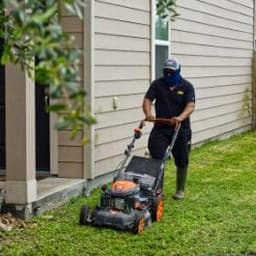 During
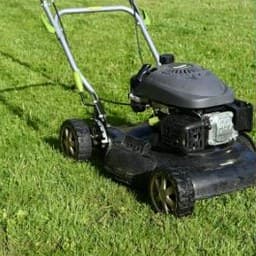 During
 After
After After
AfterGPS check-in & checklists
Crews check in on site and tick off every step before a job is marked ready.
Forms & docs
Bids, dispatch sheets and checklists stay attached to the job.
From new order to invoice in four moves.
- 01Unassigned
Create
Add the job or import it, with instructions, due date and property.
- 02In field
Dispatch
Assign a crew. The job lands in their mobile app under Due Soon.
- 03Follow-up
Complete
They check in with GPS, finish the checklist, upload photos and mark it ready for the office.
- 04Done
Invoice
Review the photos, send it to the client and close it out, with every step on record.
Ten themes. Light or dark.
Each user picks a look that follows them to any device. Admins can set a company default and lock it. Status colours never change.
OceanPriced around your operation.
Every team runs differently. Tell us about yours and we'll build a plan that fits.
- Unlimited work orders
- Web app plus mobile app for field crews
- Contractor and client logins
- GPS check-in, checklists and photo upload
- Status, filters and group by status
- Forms, documents and job notes
- Reports and insights
- Onboarding and setup support
Questions, answered.
Who is Grid PMS for?
Property preservation and maintenance companies, their field crews, and the clients they report to.
How much does it cost?
Pricing depends on your team size and work-order volume. Contact sales and we will put together a plan for you.
Do contractors and clients need their own accounts?
Your office creates their logins. Crews see their assigned jobs, and clients see the work you share with them.
Is there a mobile app?
Yes. Crews use the Android app to check in with GPS, complete checklists and upload photos. Everything also works in the browser.
Can we move over from another system?
Yes. Work orders can be imported, and we will help you bring your open jobs across.